Software & Services
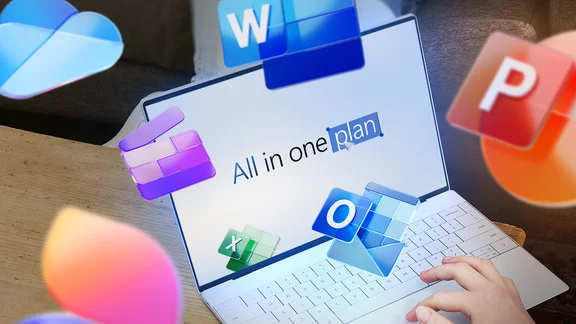
Achieve the extraordinary with AI in Microsoft 365
The powerful productivity apps and creativity tools in Microsoft 365 just got better
-
 Aiarty Image Enhancer: The easy way to AI This user-friendly AI tool can sharpen, clean and enlarge images with one click
 -
 Adobe Photoshop: Turbocharge your creative workflow with AI Photoshop’s powerful Text to Image tool generates professional artwork, tailored to your specifications with no restrictions on use
 -

-
 The best CRMs for small businesses in 2024 Find the best small business CRM to support without paying for unnecessary complexity
 -
 The best Asana alternatives in 2024 Asana is a great project management tool but it’s not perfect, so we have rounded up the best Asana alternatives so you don't need to
 -
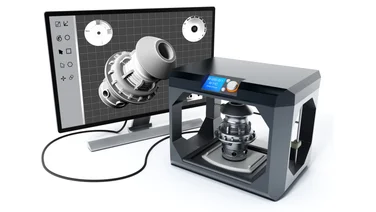 Best 3D printing software 2024 Is sub-standard printing software ruining your new hobby? Don’t worry – here’s our pick of the best alternatives for your 3D printer
 -
 McAfee+ review: A bold new suite The price could be a sticking point, but McAfee+ takes a refreshingly broad and effective approach to security£50
 -
 The 6 best Shopify alternatives in 2024 Get your products online and start selling with one of these comprehensive shopify alternatives for building a web-based store
 -
recommended
 Wix review: An easy website builder that won't hold you back Wix has not only the tools for easy website building but also the features to support more ambitious sites
 -
 Best website builders for small businesses No coding skills? Tiny budget? Go online the easy way with the best website builders for small businesses
 -
best buy
 HubSpot review: CRM tools for every budget HubSpot is an exhaustively comprehensive CRM that has something for every level of business£216
 -
 Wrike pricing: How does its cost structure work? Wrike is among the best project management programs out there, but how does its cost structure work?
 -