
To help us provide you with free impartial advice, we may earn a commission if you buy through links on our site. Learn more
- Superb motion clarity at 260Hz
- Natural-looking colours
- Adjustable stand
- Triple-figure framerates are non-negotiable
- Settings need fettling for best results
Building and maintaining a PC gaming setup can be a very expensive hobby, so you’ll be pleased to find that when it comes to your monitor – not if you opt for the Philips Evnia 27M2N3501PA.
This 27in screen costs a mere £200, which is mere pennies in a world where you have to pawn your spare kidney for a stick of RAM and a larger SSD. With a 240Hz refresh rate, adjustable stand and great performance, it’s another Philips-branded bargain.
What do you get for the money?
If, like me, you’d prefer to spend your spare cash on games rather than upgrades, then this 27in games-focussed monitor is your knight in matte-white plastics. Its Fast IPS panel partners a 2,560 x 1,440 resolution with a 240Hz refresh rate, which is overclockable to 260Hz.
And you get all the usual gamer-friendly features, in addition to a fully adjustable stand for an MSRP of £209. At the time of writing, it’s retailing for £199 – and we’ve seen it drop as low as £170 in recent months, so it’s definitely one to watch if you’re hankering for a cut-price gaming ally.
Build and connectivity
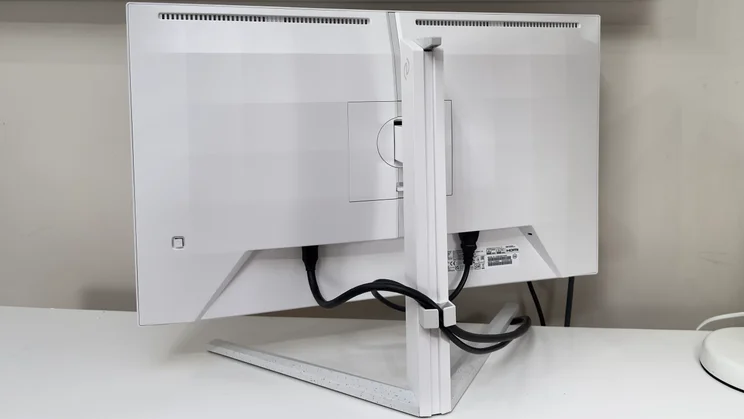
This is an affordable gaming monitor. That means you can expect a relatively light, plasticky build with all the money spent where it matters – the screen. That said, Philips has done a great job of balancing the books here. The panel and build do feel light and hollow compared to premium-priced rivals, but unlike even cheaper stablemates such as the excellent Evnia 27M2NM3500NF (£130 at Amazon) you do get a fully adjustable stand.
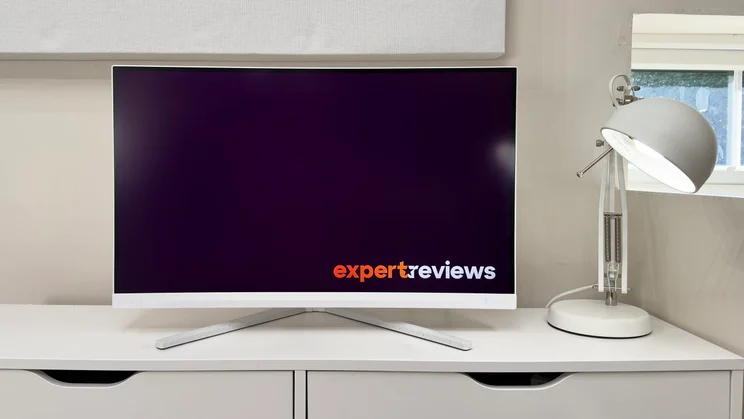
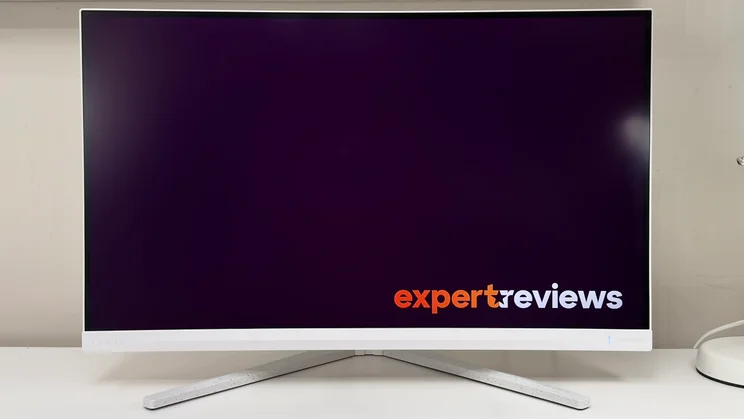
You even get an upgrade to a more striking design, with off-white plastics on the panel that are complemented by a subtle grey-speckle on the V-shaped base. It might not be everyone’s cup of tea, but this is a smart-looking monitor for sensible money.
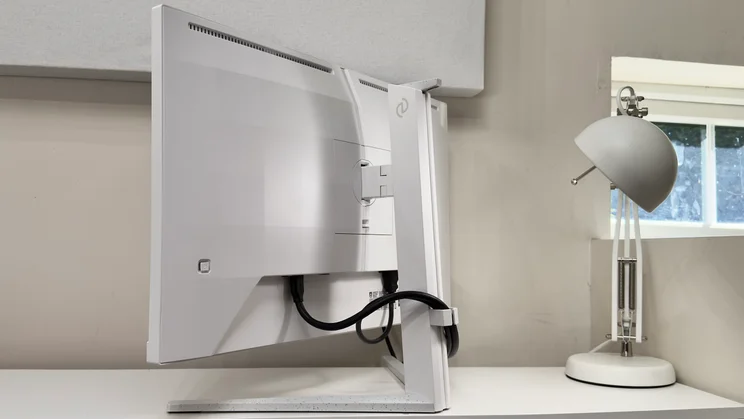
The stand itself works well. It’s not as rigid as I’d like, with a fair bit of side-to-side wobble if you really start banging on your keyboard, but it’s easy to adjust one-handed and the wide, flared base ensures it isn’t at risk of toppling over.
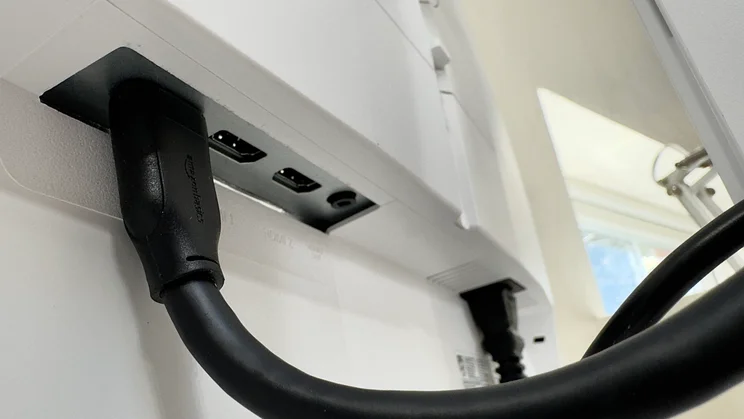
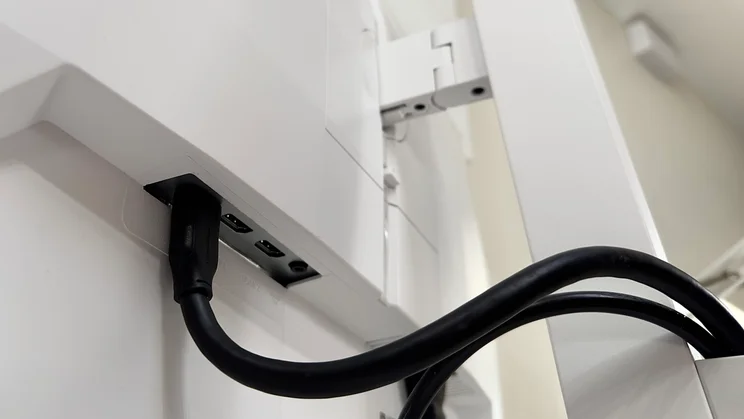
Cast an eye around the rear and you’ll find a 3.5mm audio output alongside two HDMI 2.0 ports and a single DisplayPort input. Sadly, you’ll need to use the DisplayPort to take advantage of the panel’s maximum 240Hz refresh rates as the HDMI ports are limited to 144Hz.
Those HDMI ports still come in pretty handy, though – especially if you’re planning to connect some 120Hz-capable games consoles and other sources to the Evnia. But do bear in mind that the cable management is just a basic little plastic clip on the rear. As a result, you’ll need to take care when adjusting the height from one extreme to another – as the cables do tend to snag and pull when clipped away.
Usability and features
Open up the Evnia’s on-screen display with the little four-way joystick on the panel’s rear and you’re immediately faced with a selection of gaming-focussed picture modes.
The Standard mode is active by default, but you can swap to FPS, Racing, RTS, Movie, LowBlue Mode, EasyRead (black and white), Economy, Smart Uniformity and two customisable Game profiles. The FPS and Racing modes add a very odd blue and green tint, but you can reset the RGB controls on any of these profiles and set them up how you like them. If you want to dedicate specific profiles to specific games, you can. And it’s easy to adjust all the settings, too, as the menus are sensibly designed and easy to navigate.
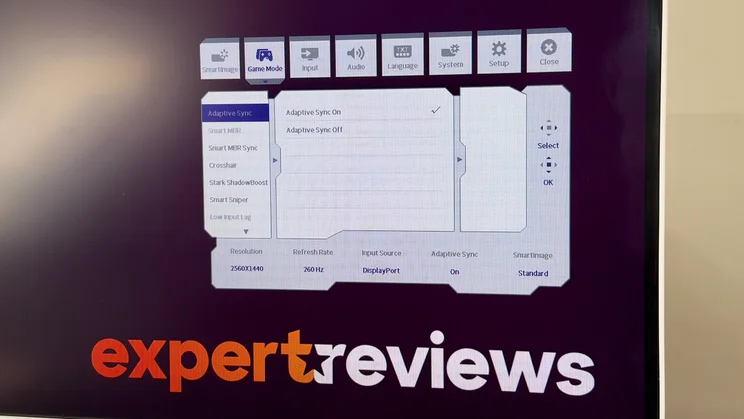
As per usual, you can activate a range of gaming features. There’s a hardware crosshair – which can be handy; a Sniper mode which zooms the central portion of the screen, and the Stark Shadow Boost function, which lightens shadows progressively across three settings to reveal enemies lurking in the darkness.
Just like the cheaper Evnia 27M2N3500NF, you can also activate backlight strobing to improve motion clarity. You can pick between enabling Adaptive Sync or the Smart MBR backlight strobing mode, or you can opt for the halfway house of Smart MBR Sync, which attempts to blend the best of both worlds. The only disappointment here is that you can’t assign specific adaptive sync or MBR settings to each picture profile – that isn’t a common feature, but it would be very handy in practice.
For the uninitiated, backlight strobing is an effective way of reducing the apparent motion blur on LCD panels. It does this by flashing the backlight in sync with the current refresh rate. The issue, however, is that this technique can produce double images and other visual nasties if your framerate drops below that refresh rate.
This presents the user with some decisions. If you have a game that you can run at a constant triple-figure framerate, then Smart MBR without adaptive sync will give the cleanest image. If framerates are variable, then Philips’s Smart MBR Sync adjusts the strobing frequency to match the current framerate by working in tandem with the adaptive sync feature – and this works well as long as framerates don’t drop low enough to cause flickering. So you’ll need to take time to adjust and enable or disable the various modes to get the best compromise between motion clarity and image brightness.
Elsewhere, the monitor does have a pair of 2W speakers built in, but as ever these are best kept for emergencies. Tinny, harsh and synonyms thereof are the order of the day.
What’s the image quality like?
The big points of contention here will be for people who’ve had any experience of an OLED or Mini LED monitor. Fast IPS panels simply don’t have the contrast ratio to produce those lustrous black levels and super high-contrast images. That said, this is a monitor you can simply pull out of the box, pop on the table and, once you’ve set the refresh rate to the panel’s maximum 240Hz, just get on with the serious business of gaming.
The default Standard picture profile produces a pleasingly natural-looking image. While there is a slight reddish warmth, that’s mostly because the panel is able to produce more intense, saturated tones than are required for the sRGB palette used by most games.
Flick the sRGB mode toggle on in any of the picture modes and you’ll find that those overly intense primary colours look a bit less saturated. If you prefer your colours with a little more pizzazz, however, then you can leave it as is.
Colour accuracy, brightness and contrast
Colour accuracy is good. In our tests, with sRGB mode enabled, the Philips achieved an average Delta E of 0.7, which is impressive. The maximum Delta E was 2, and that means most colours will look accurate to the naked eye. The panel’s white point is a touch warm at 6,279k, too, but it’s not way off – there is a hint of excess warmth, but it’s not intrusive or very noticeable.
As I found in the subjective tests, disengaging the sRGB mode allows the panel to produce an even wider range of colour. In our tests, this allowed it to produce 99.5% of sRGB, 84% of DCI-P3 and 78% of Adobe RGB.
My biggest bugbear with the Evnia is that contrast is relatively low at 1,179:1, and compared with my reference OLED panel, the black level does look quite greyish. My recommendation is to put a lamp or light of some kind behind the monitor – some gentle bias lighting makes a huge difference to the perceived black depth on IPS panels.
Brightness is ample for SDR content, with a peak brightness of 348cd/m2, but you’re going to struggle to get usable results from the Evnia’s HDR mode. There’s no local dimming here, so you won’t be getting the visual impact that HDR deserves – and in many cases it may look worse than SDR.
One final moan is typical of the budget breed: the backlighting could be a little cleaner and more even. It’s not something you’ll notice during the day with the lights on, but once the sun goes down, the dim ring of backlight leakage around the panel’s edge is a tad unsightly. It’s not severe, but it’s there.
Motion clarity and gaming
Fire up a game and the first thing you’ll probably notice is some shimmering and ghosting around moving objects. This is because, by default, the panel’s overdrive circuit is turned off so, at maximum refresh rates, the panel’s native response time simply can’t keep up. Jump into the OSD and raise the overdrive setting to Fast or Faster, however, and everything snaps into focus. There’s no apparent inverse ghosting until you crank the response time up to its Fastest setting, and the result is that games look crisp and feel fluid. I tended to stick to Faster for most titles.
Testing the Smart MBR and Smart MBR sync modes produced impressively clean, blue-free action, but it requires the right conditions. If you find your framerates bouncing between double and triple figures, the backlight strobing will add an intrusive flicker as the framerates dip lower and the strobing effect becomes a visible pulse. If you can’t maintain triple-figure framerates, then use adaptive sync alone. Feed it with more consistently high framerates, however, and the combination of backlight strobing and adaptive sync comes into its own.
Engaging the Evnia’s overclock function pushes the standard 240Hz up to 260Hz, and although I couldn’t detect the tiny, tiny theoretical boost in responsiveness, it still looked and felt great for such an affordable panel. In my testing, I ended up leaving it on – not because it was a night and day difference, but because it didn’t cause any issues. Motion is smooth and about as crisp as you could expect for an IPS panel, and if your GPU can deliver the frames, the monitor will display them.
If you do decide to use the monitor at a lower refresh rate, though, bear in mind that you may need to adjust the overdrive settings. While Fastest is usable at 240Hz, the overshoot can become intrusive at 120Hz and below. In short, this is a monitor that requires you to tweak the settings to get the best from it.
You may be able to be more aggressive with strobing and overdrive settings for games that run at consistently high framerates, or you may need to dial settings down to get the best images from titles with demanding ray-tracing modes that drop framerates well down into double figures.
Input lag, text clarity and HDR
Input lag is just as low as you could ask for. Using the OSRTT Pro CS sensor, the Evnia produced a minimum input lag of just over 2ms and an average of just shy of 4.2ms, which is exactly what you’d want to see. As a 240Hz monitor needs to display one frame every 4.17ms, this means it won’t be the Evnia holding you back.
One other big benefit of opting for a QHD IPS panel rather than an OLED variant is that the text clarity is far superior. The OLED pixel structure causes text to look rougher and more pixellated than LCD-based panels, and that means the Evnia is a far better pick as an occasional productivity monitor. The matte, anti-glare finish does a decent job of suppressing reflections and bright sunlight, too. I used the Evnia under a skylight on several bright, sunny days and it did a good job throughout.
One final word: I wouldn’t bother with HDR on this monitor. Although it supports it, the relatively low peak brightness and basic backlighting means it’s just not capable of getting any benefit from HDR. In most cases, SDR content will look much bolder and brighter.
Should you buy the Philips Evnia 27M2N3501PA monitor?
One of the best reasons not to consider the Philips Evnia 27M2N3501PA is if your GPU just isn’t capable of hitting 200fps+ framerates in the games you play. If your system isn’t up to it, then you can save a fair bit of cash by downgrading to the 144Hz 27M2N3500NF, which retails for around £120. You lose the adjustable stand, but image quality and motion clarity are superb for the money – and it’s a better fit for budget systems.
If your GPU is up to it, however, and you’re hoping to snag a good gaming monitor for under £200, then the Evnia 27M2N3501PA is a really good buy. It puts in a good performance across the board, and the height-adjustable stand is the cherry on top. You will need to put up with juggling the various settings to achieve the best image quality in different games, but if you want to see your GPU and system stretch their legs at triple-figure framerates, it’s more than up to the challenge.


