
To help us provide you with free impartial advice, we may earn a commission if you buy through links on our site. Learn more
- Sizzling colours
- Motion clarity is great
- Adjustable stand
- Brightness is lacking
- Build feels basic
- Text is a tad fuzzy
There’s a lot to love about OLED monitors for gaming. The near-instantaneous response times. The vivacious palette of colour. Perfect inky black.
The only major downside is the price. And that’s why the Alienware AW2726DM is destined to be very popular indeed – this 27in monitor packs in a QD-OLED panel for well under £400.
What do you get for the money?
Alienware has taken a third-generation 27in Samsung QD-OLED panel and housed it in the most budget-friendly body that it could create. This exact same panel is found in a wide range of far pricier models from other manufacturers: the 2,560 x 1,440 panel has the usual semi-gloss finish, and it’s identical down to each and every pixel. Mostly, anyway, as I’ll explain shortly.
You also get a fully adjustable stand, multiple video inputs (DisplayPort and a pair of HDMI ports) and a three-year RTB warranty, which covers burn-in.
That said, the Alienware AW2726DM makes some sacrifices to hit its price point. This is possible because OLED is a little different to other display types. If you want to squeeze every drop of performance from a specific OLED panel, then the manufacturer has to manage its heat output – and while pricier 27in panels achieve this using expensive graphene film, advanced heatsinks or active fan designs, Alienware has kept the budget down with a cheaper graphite film.
As a result, the AW2726DM uses a far more aggressive Automatic Brightness Limiter, which limits full-screen brightness to a claimed 200cd/m2, and delivers a relatively low peak brightness of just 400cd/m2. Similarly, Alienware has eschewed the panel’s maximum 360Hz refresh rate; it’s limited to 240Hz in order to permit the use of a less expensive, cooler-running controller.
What are the key features here?
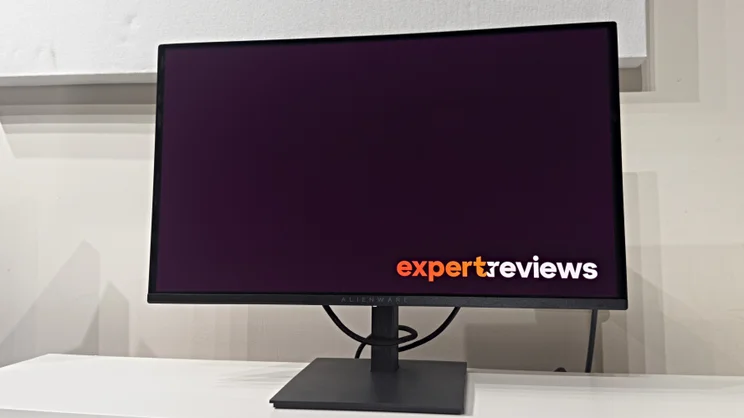
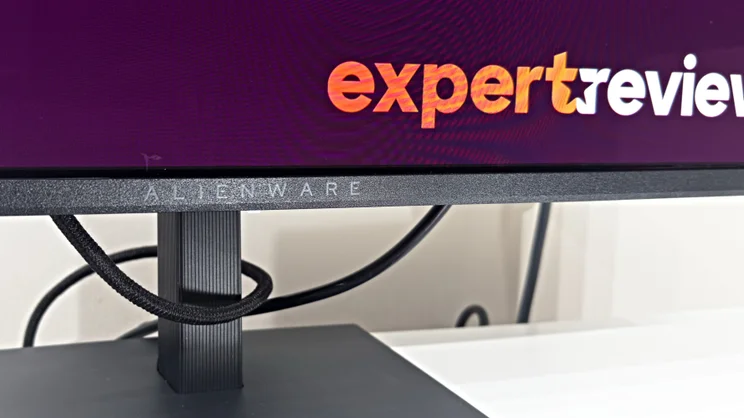
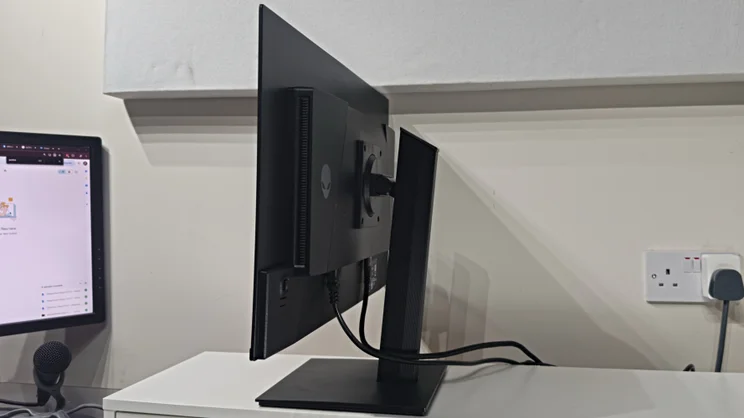
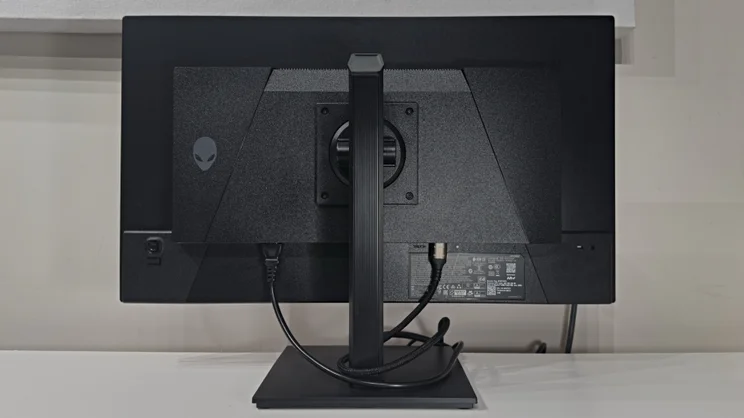
It’s absolutely clear where the rest of the budget has been trimmed: the body of the AW2626DM feels light and plasticky, as does the stand. There’s no slick quick-release mechanism to lock the stand to the panel – you have to attach it with the supplied four screws.
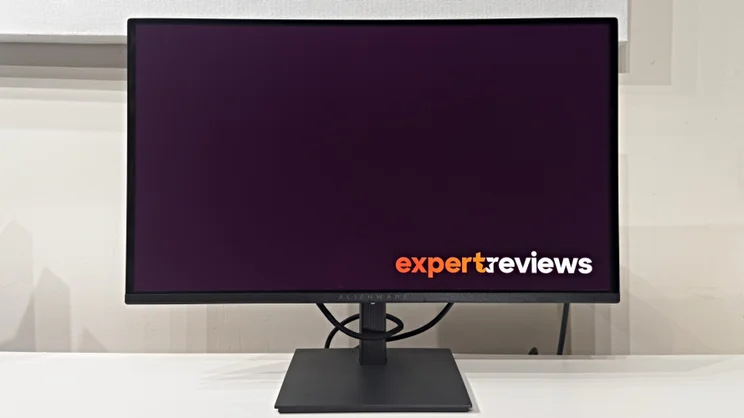
Still, Alienware is to be commended for making the right compromises: the stand and base might feel lightweight, but at least itis fully adjustable. There’s a generous 150mm of height adjustment, a good amount of tilt and swivel and the pivot mode allows it to rotate around 90 degrees in either direction. And while the build feels insubstantial, it’s pretty stable at most sensible extensions. Extend the stand to its fullest and there is a little wobble, but it’s not precarious.
And for all the quibbles about build, this is a good-looking monitor. It’s barely a few millimetres thick around its top edges, and the crisp, squared-off lines are a remarkable contrast to the bulbous, rounded styling of other models in Alienware’s range. Some may prefer it, in fact.
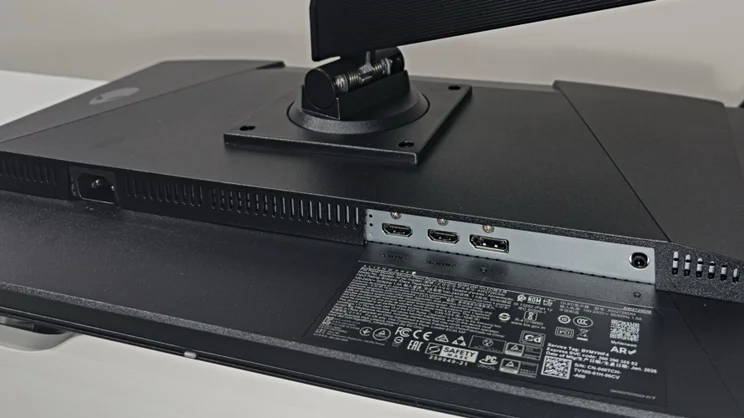
Connectivity covers the essentials and nothing more. A single DisplayPort 1.4A port is flanked by two HDMI inputs. Both of these are limited to 120Hz. Only the DisplayPort input supports 240Hz. There’s a 3.5mm audio output, too, and sensibly Alienware has omitted the integrated speakers.
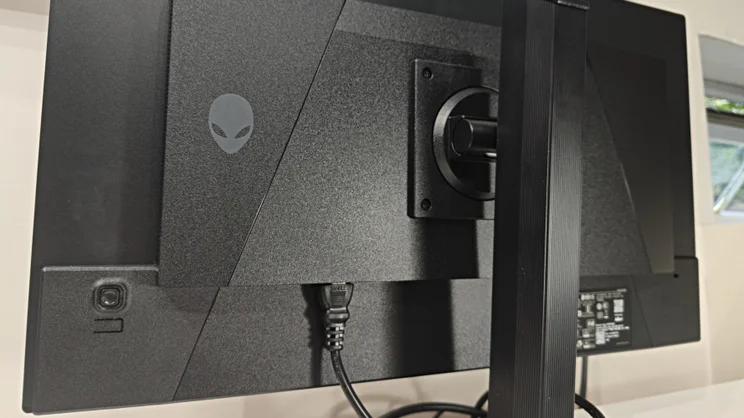
The on-screen display will be familiar to anyone who’s used a Dell or Alienware model in recent times. The square, clickable four-way joystick on the panel’s rear doesn’t feel as nice as the classier round nubs on pricier models, but it’s fine. Click it once and the quick menu pops up with a browsable selection of key features, along with an information panel just above. This provides an instant overview of the current active resolution, refresh rates, preset mode, Smart HDR mode, panel health (a colour-coded dot indicates whether a panel refresh is required) and the current dark stabiliser setting.
Flick the joystick upwards and it opens the menus proper. As usual, everything is easy to navigate – it’s a good menu system. The quick menu can be customised to include your most used settings, and it’s also possible to set the joystick’s directional clicks to open a specific item – I personally liked to have the Dark Stabiliser and brightness settings close to hand, as it’s useful to be able to adjust these on a game-by-game basis.
In fact, the only negative here is that the power button is directly underneath the joystick. On more than one occasion, I reached out to adjust the settings mid-game and clicked it by mistake. I’d prefer the power button to be somewhere well away from the OSD controls, ideally.
Gamers will care most about the gaming-centric features here, naturally. The dark stabiliser setting is probably my most used of the bunch: by default, the AW2726DM does tend to darken shadow detail, so the stabiliser setting allows you to lift the blacks to stop enemies disappearing into the shadows. The other settings in the Game Enhance menu aren’t quite as helpful: a live refresh rate counter, a timer (it offers 30, 40, 50, 60 and 90 minute countdowns) and a display alignment overlay, which helps you arrange multiple displays more neatly.
How did I test the Alienware AW2776DM?
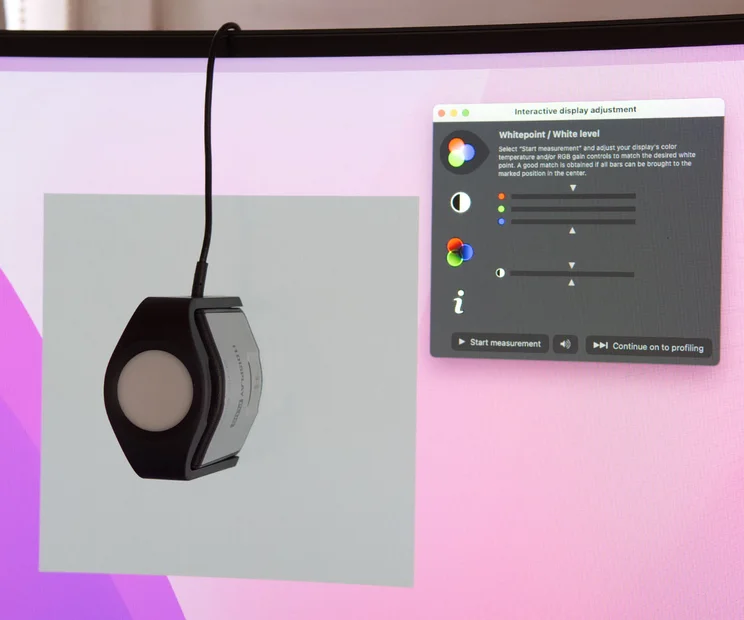
I tested the Alienware AW2776DM in the same way I do all monitors. The first step is assessing features and build quality. Is the stand easy to attach and adjustable? What connectivity is on offer? I give the OSD a thorough workout, too, noting how easy it is to navigate. Only then do I move on to test image quality and to do that I use an X-Rite i1 Display Pro Plus colorimeter in tandem with the DisplayCAL calibration and profiling software.
I test the image quality in all relevant picture modes to evaluate the monitor’s brightness, contrast, colour accuracy and colour gamut in bot SDR and HDR modes where appropriate. I measure the brightness and contrast across 25 points on the panel to check for variances in backlighting or panel uniformity. For gaming monitors I use an OSRTT Pro CS to measure response times and for LCD-based monitors the tests are repeated at the monitor’s various overdrive settings.
And all this is also backed up by subjective testing. I use the monitor in normal lighting conditions, both bright and dark, in addition to noting any issues with the panel’s anti-glare coating. And every review is written while using the monitor in question, so it gets tested across a wide range of duties: basic productivity, editing high-resolution product images, watching SDR and HDR video content and extended gaming sessions.
How is the picture quality?
You’ll immediately notice the AW2726DM’s biggest weakness: it’s not bright. It arrives on your desk set to 75%, and that equates to a very modest 124cd/m2 for a full screen of white in SDR. Even with the brightness up to maximum the AW2726DM still tops out at a very modest 183cd/m2.
That’s dramatically dimmer than most LCD monitors, and markedly less bright than most OLED rivals. If you’re intending on gaming or watching movies in a room that regularly fills with bright sunlight – or you just prefer to game with all the lights on – this may not be the monitor for you.
It is worth adding some context here, however. Under normal office or slightly dimmer room lighting, that kind of brightness is nigh-on identical to the recommended levels for daily use and in these circumstances the AW2726DM has a lot to offer.
The panel serves up a simply sumptuous palette of colour, and my measurements showed it covering an impressive 99.7% of DCI-P3 and 95.2% of Adobe RGB. It’s also colour accurate out of the box, with the monitor’s Standard mode achieving an average Delta E of 1.33 when measured against a Display P3 target.
It’s worth noting there’s no sRGB mode here, so for games and movies in SDR you’ll have to put up with oversaturated colours – or use Windows’ Automatic Colour Management to clamp down the gamut. And if you want to pick nits, then whites are a touch on the warm side – I measured 6,130k rather than the ideal of 6,500k. Plus, the panel does tend to crush the darkest greys into black. You will need to make judicious use of the Black Stabiliser control unless you want to lose sight of enemies skulking in the shadows.
Load up a game, however, and any qualms you might have had are likely to disappear. The QHD resolution isn’t too challenging for a competent CPU and graphics card to achieve triple-figure frame rates, and the 240Hz refresh rate and near-instant response time of OLED make for a thrillingly crisp image. Motion clarity is top-notch, and if your system can’t quite manage to keep frame rates locked at 240fps, you can enable VRR (both AMD FreeSync Premium and VESA Adaptive Sync are supported). Nvidia’s G-Sync isn’t explicitly supported, but there are reports of it activating and working on other online reviews – sadly, I only have an AMD card to test with.
As ever, the one downside to VRR on OLED monitors is the presence of VRR (variable refresh rate) flicker. This won’t be noticeable if your system can maintain a high, steady frame rate, but I did notice it during particularly intense scenes where frame rates dipped down towards the 60fps mark. It’s an issue inherent to all OLED monitors, so your options are to reduce in-game detail settings and use more aggressive scaling to maintain a higher frame rate – or to reduce the refresh rate to 144Hz or 120Hz. If ray-tracing is involved, then all of the above.
The final downside is again common to all monitors that use this particular type of panel. Text looks notably fuzzy compared to a similarly-specified LCD panel – this is due to the triangular sub-pixel layout, which just doesn’t play nicely with text rendering. This can cause coloured fringing around the edges of text, and a soft look to documents, which may irritate people who want a true do-it-all display. Disabling Windows’ ClearType or installing third-party tools can go a long way towards minimising the issue, but it’s worth noting that it exists.
And, similarly, there is one final issue of note: a soft reddish glow to black or dark areas when viewed in brighter conditions. This is caused by light hitting the panel’s quantum dot layer and reflecting back with a red tint. More recent panel revisions have largely removed this issue, but it is noticeable here – and on all monitors that use this panel generation. There is a relatively easy fix: turn the lights down. It’s not very intrusive in daytime use; it’s just one of those things that’ll bother some people more than others.
Should I buy an Alienware AW2726DM?
The glaring issue here is that the Alienware AW2726DM just isn’t that bright and while the price is low, you don’t have to spend that much more to get a brighter screen. For instance, at the time of writing, the brighter, faster 280Hz Alienware AW2725D has dropped to £390. I’ve also seen the 360Hz AOC Q27G4SDR fall to a similar price. Both use the same 3rd-gen Samsung panel as the AW2726DM.
Make no mistake, the Alienware AW2726DM is a good value QD-OLED monitor. The compromises are mostly well-judged, and anyone who’s been craving the unerring crispness of OLED motion and high-frame-rate gaming for sensible money will be most pleased. But, if getting the best deal matters to you, make sure to shop around before hitting the buy button.
Alienware AW2726DM specifications
| Display | 26.5″ QD-OLED panel |
| Panel resolution | 2,560 × 1,440 (QHD / 1440p) |
| Refresh rate | 240Hz |
| Panel response time | 0.03 ms (GtG) |
| Adaptive Sync Support | Yes (AMD FreeSync Premium, VESA AdaptiveSync) |
| HDR Support | Yes (HDR10) |
| Ports | HDMI 2.1 × 2 (120Hz), DisplayPort 1.4 (240Hz), 3.5 mm audio out |
| Other features | N/A |
| Stand | Tilt –5° to +21°, Swivel –20° to +20°, Pivot –90° to +90°, Height 130 mm |
| Dimensions (with stand, WDH) | 609.3 × 233.4 × 393.3 mm |
| Weight (with stand) | 9kg |


